

Speedy Script
The basic functions “Insert Comp Nodes” and “Export Comp Nodes” are taken further with Speedy Script, to save time and RAM and keep your script clean.
For artists, Speedy Script is really handy when they need to import, for example, a previous version of the script because they only need some of its nodes.
Speedy Script is also Pipeline-oriented. You don’t need other modules or plugins and it can be expanded according to the needs of every company. Speedy Script is not “installation dependent”: it will also work on machines where Speedy Script is not installed.
Speedy Script is ready for Nuke13 and Python3

You can download Speedy Script from the link below:
Download from Nukepedia
Overview
Click on the links below to go directly to the section you want:
00. HOW TO INSTALL IT?
Installing the package is really easy, because all the paths and folders are already set up.
1. Extract the folder from the .zip file
2. Drag and drop the folder into your .nuke folder
#path would be something like this:
#Linux: /home/login name/.nuke
#Mac OS X: /Users/login name/.nuke
#Windows: drive letter:\Users\user name\.nuke
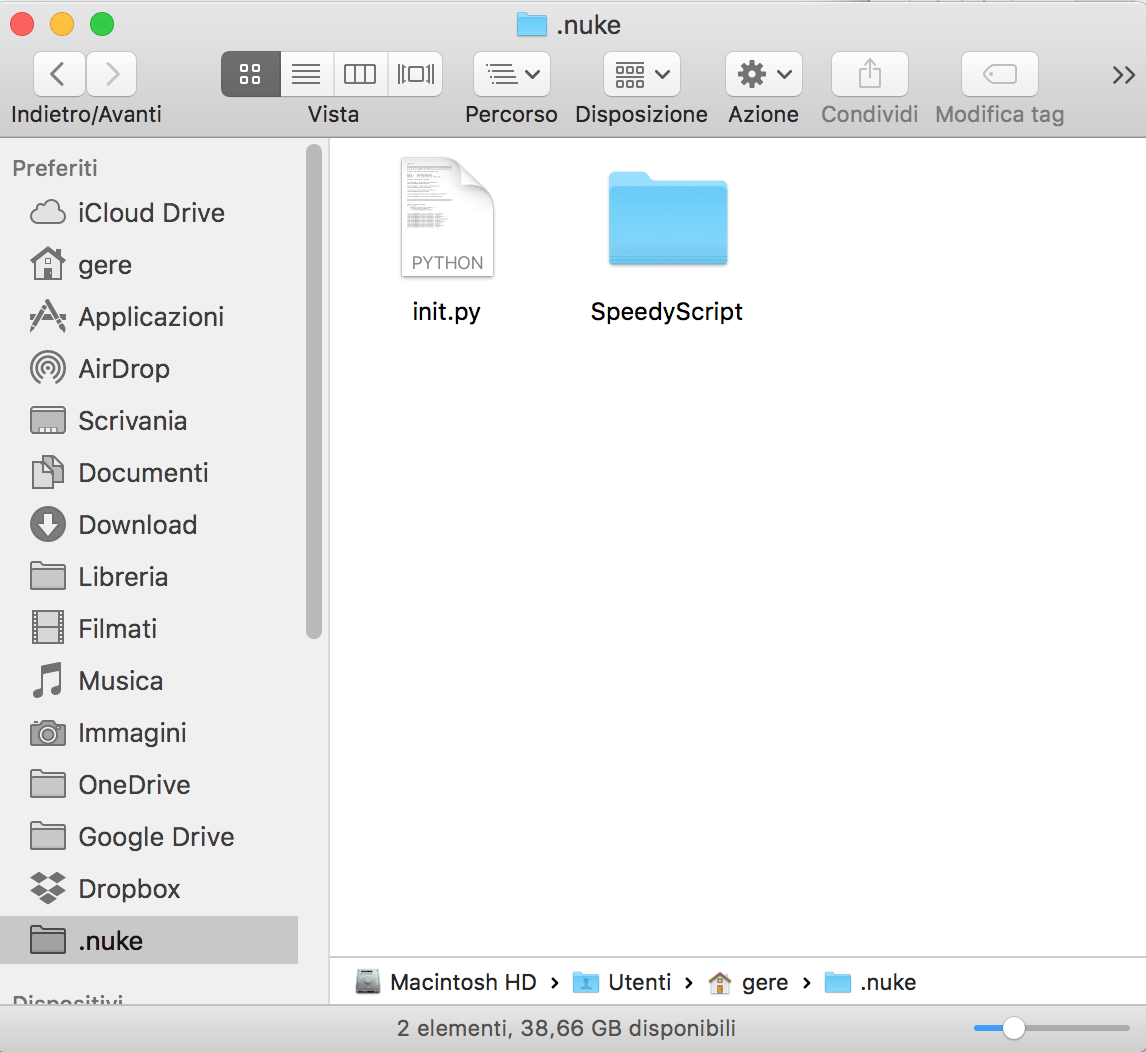
3. Open the file init.py inside your ~/.nuke folder with a text editor, or create it if it doesn’t exist.
You can create a new text file and change its extension from .txt to .py
Don’t change the init.py file inside the SpeedyScript folder
4. Add the following lines and modify the path according to your .nuke folder (Don't delete the "r" before the path):
import nuke
nuke.pluginAddPath(r'C:\Users\user name\.nuke\SpeedyScript')
5. Run Nuke
6. When you open Nuke, Speedy Script is not visible yet.
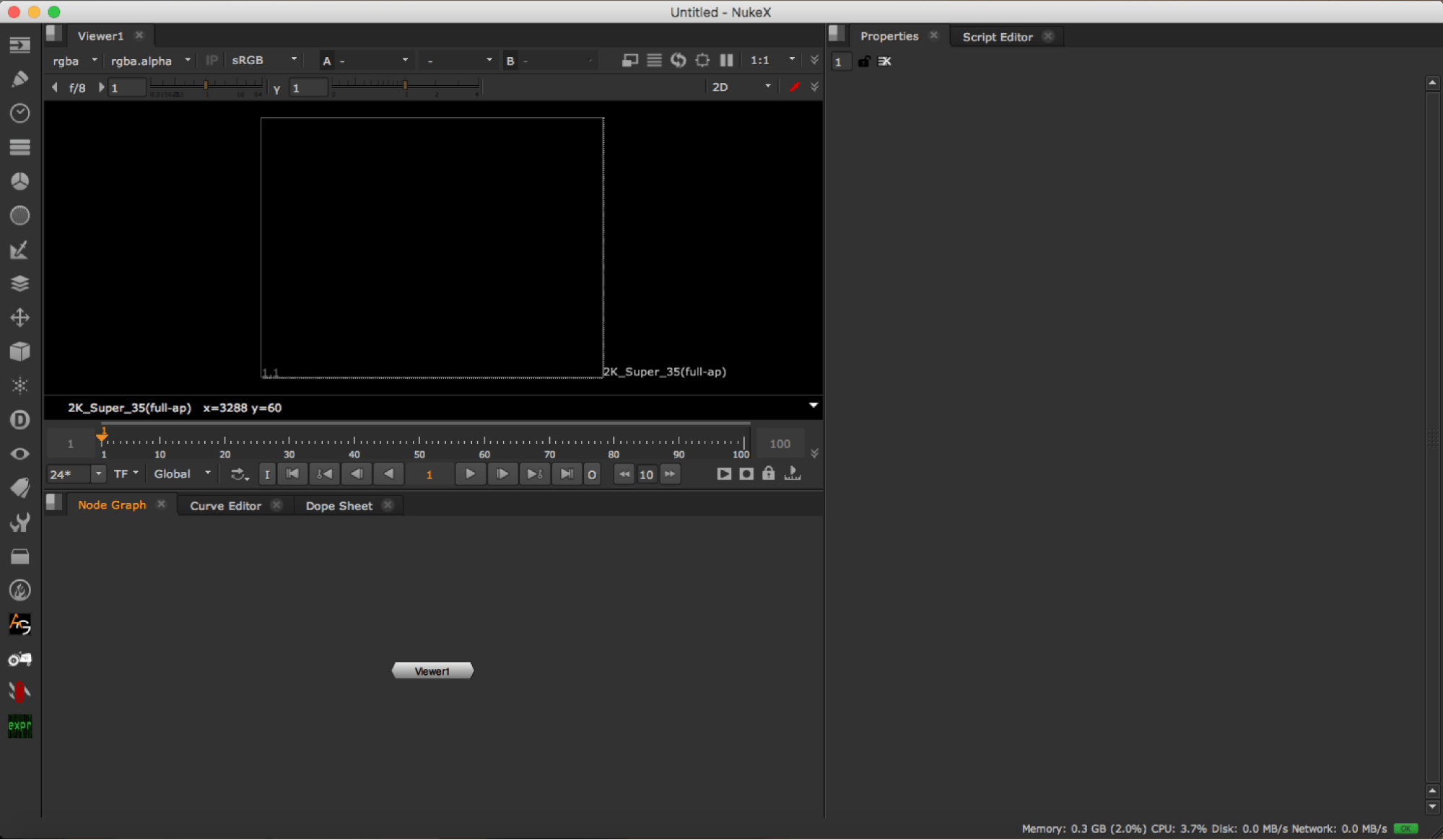
7. Click on the icon and go to Windows > Custom > Speedy Script
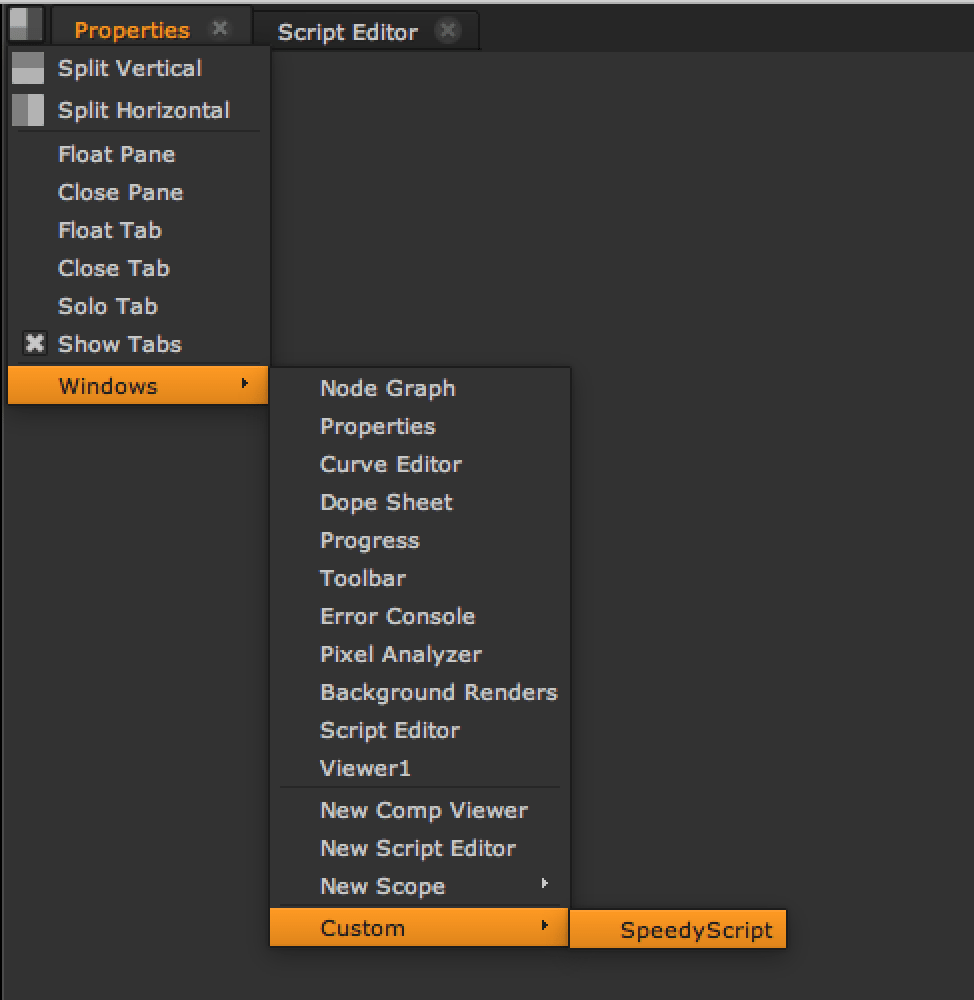
8. Now you will have something similar to this:
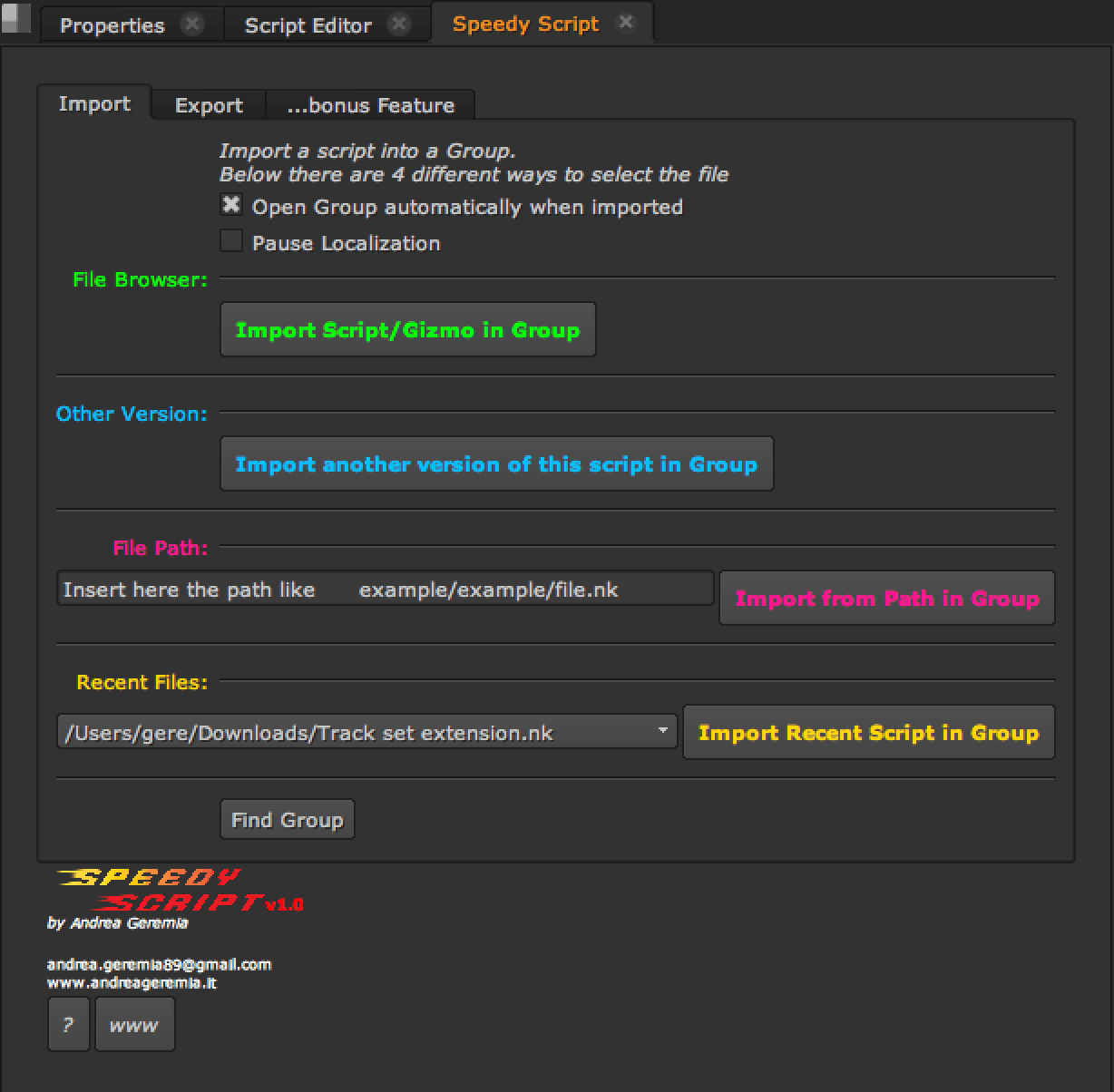
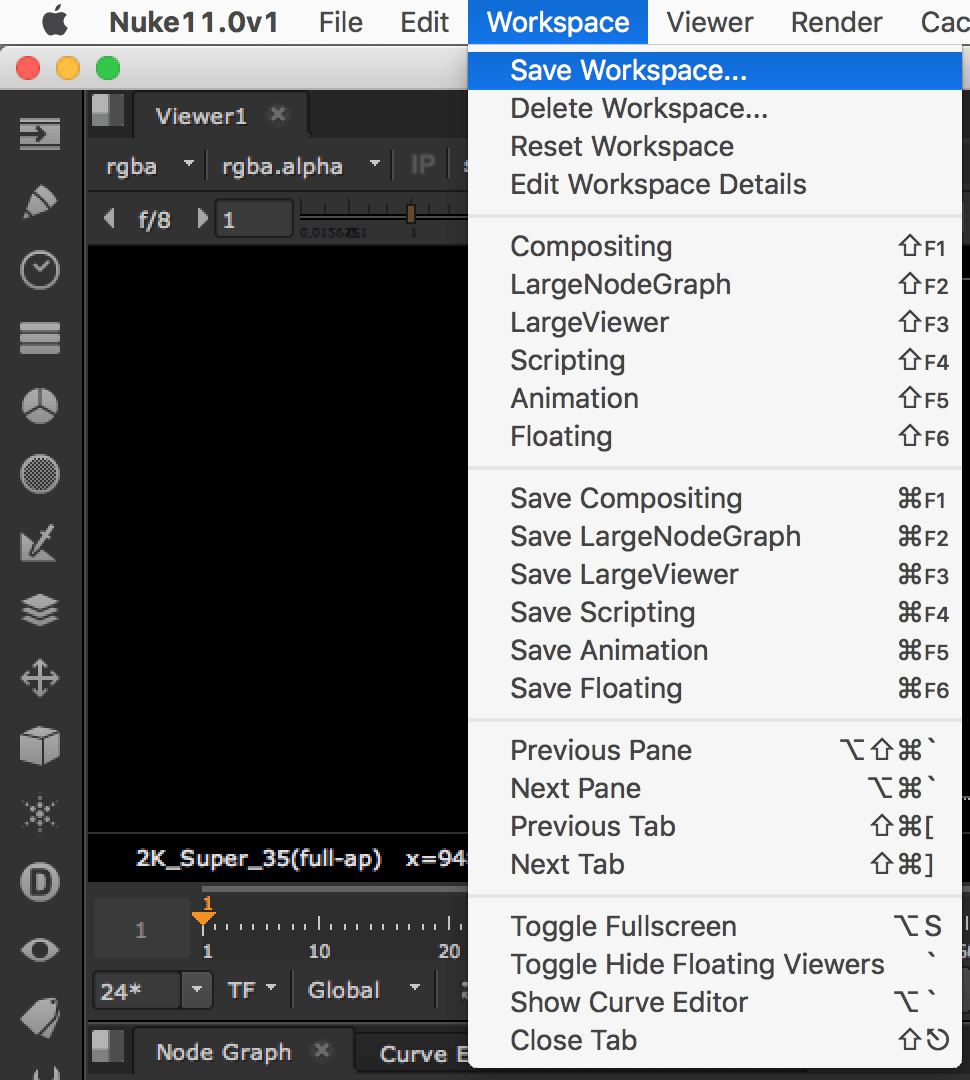
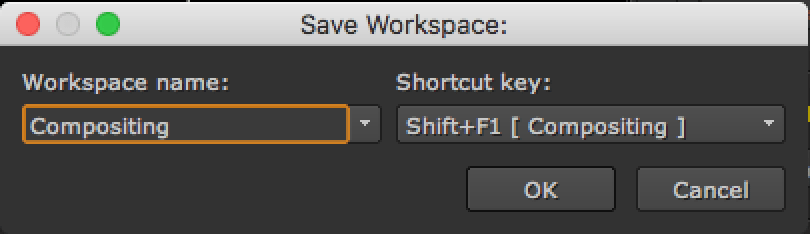
9. You can save this window layout as a preset: Workspace > Save Workspace
- 01. Import Script
When you have to take parts of the script from a previous version, you should open a new instance of Nuke, or use the classic Import Comp Nodes.
It's annoying, slow and confusing, especially because of the time it takes to load a new instance of Nuke.
So, the solution: instead of opening a new instance of Nuke, artists can import the old script into a Group, copy the nodes they want and then delete the Group!
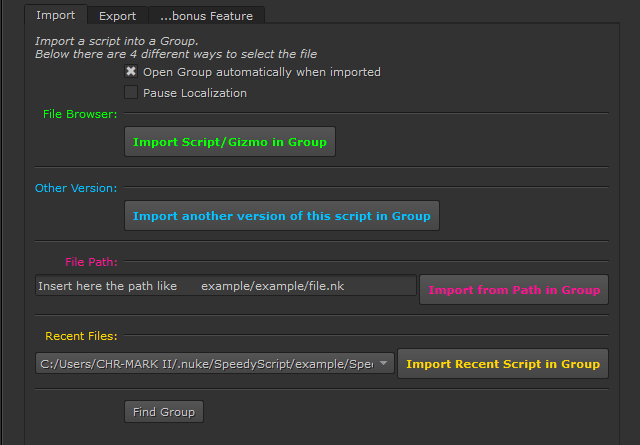
The first tab of Speedy Script is dedicated to importing. Here you have 4 different ways to select the script that you want to import:
- File Browser: is the classic window to navigate your folders and select the .nk file to import.
- Other version: if your script is saved into a folder, with this button you can directly import a Nuke script from that folder.
It’s really good to use this option when you want to import a previous version of your script. In case you didn’t save your script yet, it will open the classic File Browser.
- File Path: copy and paste the file path of your .nk file and import it. For example, use this option if a colleague sends you the path of their script
- Recent Files: here you have a list of the last 25 scripts you opened. Really easy and fast because you don’t need to open or navigate the file browser
In every case, the script you select will be imported into a red Group, as in the image below.
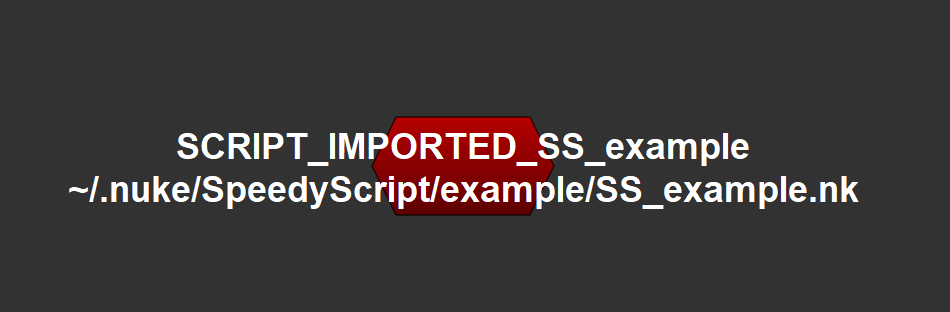
Now, if you enter into the Group with CTRL+ENTER or by clicking the S icon in the properties (upper-right corner), you will see the entire tree.
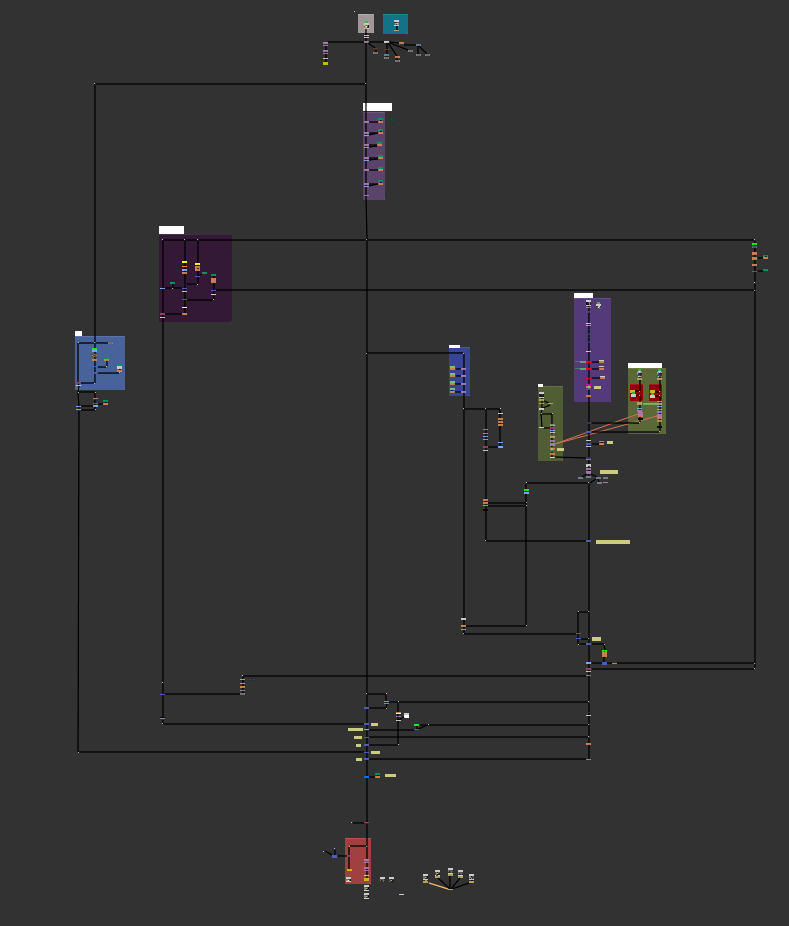
The upper bar tells you that you are inside the Group.

Now you can copy parts of the script that you need and paste them in the Node Graph.
At this point, delete the Group!
You also have 2 more options you can tweak:

- Open Group automatically when imported: you will be already inside the group when it’s imported (as default)
- Pause Localization: if you have Localization ON, your machine will start localizing the Read nodes inside the Group too. With this option checked, Speedy Script pauses localization when the Group has been imported and you can resume it when ready
- 02. Export Script
Exporting your gizmos/nodes is also improved with Speedy Script
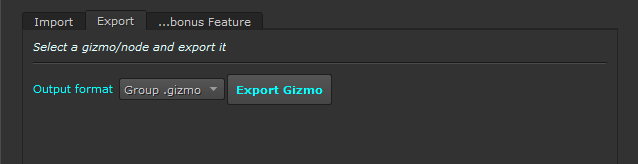
Usually, when you create a Gizmo with Nuke, you can Export it with the default button “export as gizmo…”.
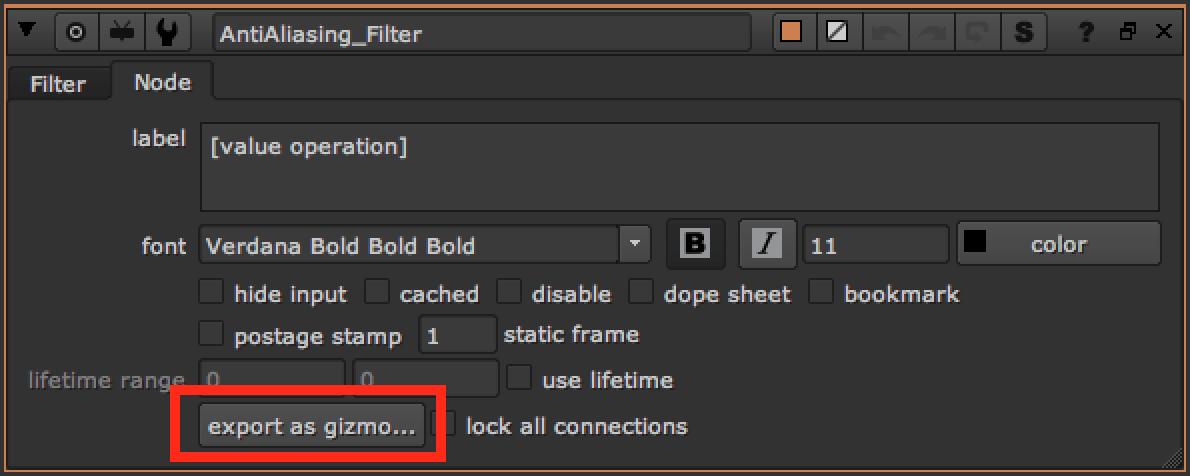
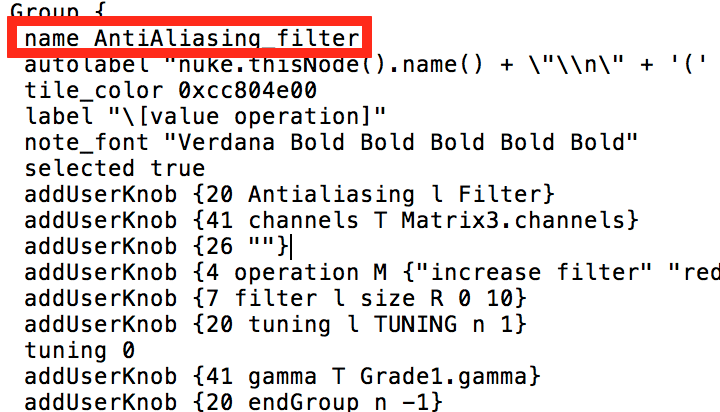
You will get your file .gizmo exported into a folder, but you have to manually change some lines of code: version of Nuke, from Gizmo to Group, name of the node, xpos, ypos.
Using Speedy Script, every annoying operation will be automated and your Gizmo will be ready for use.
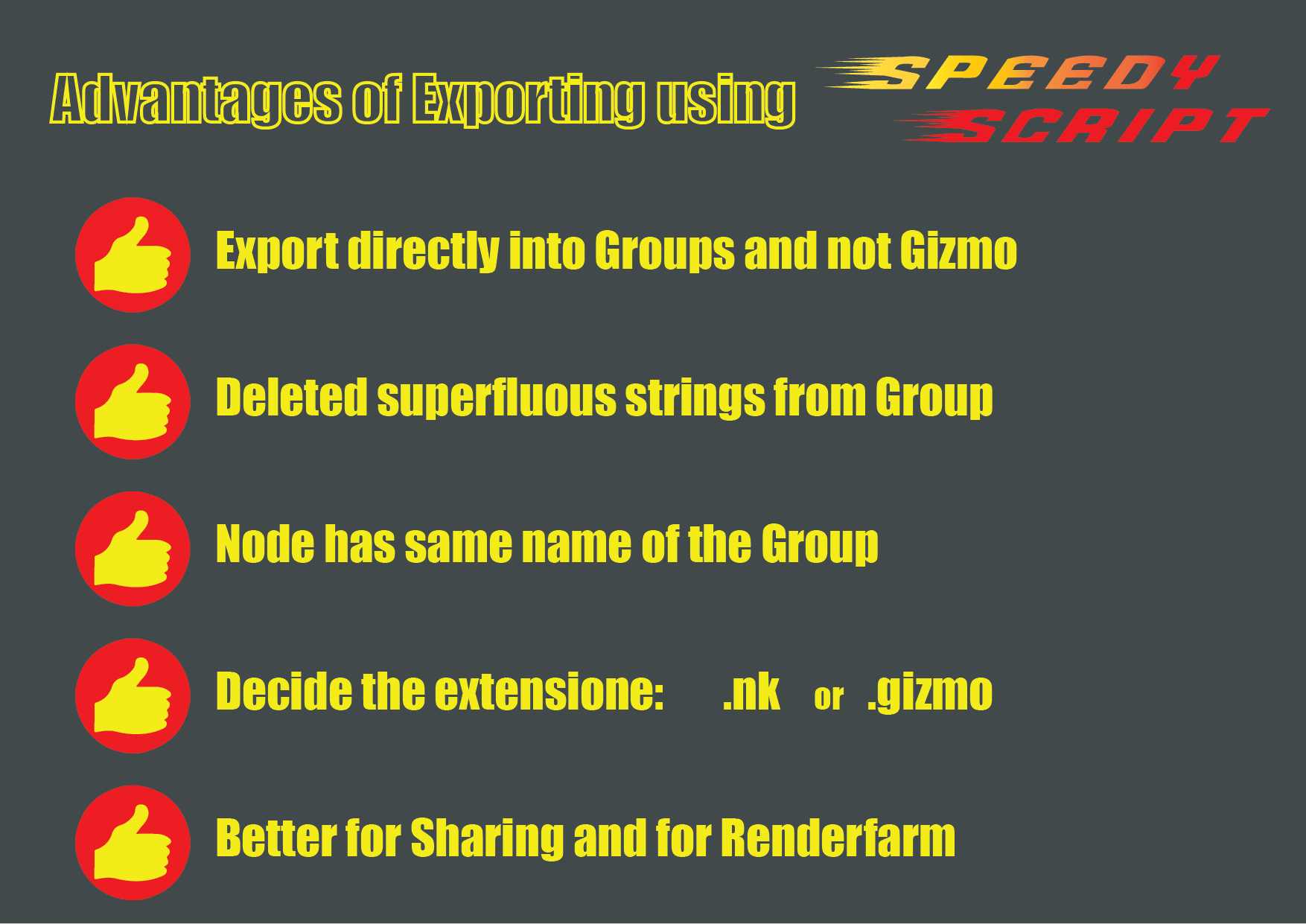
So our gizmo will be clean and ready to use. More details in the documentation of Speedy Script.
- 03. Bonus Feature
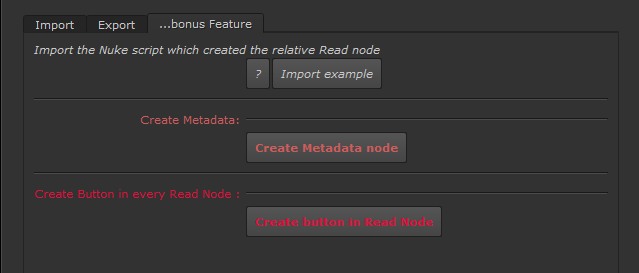
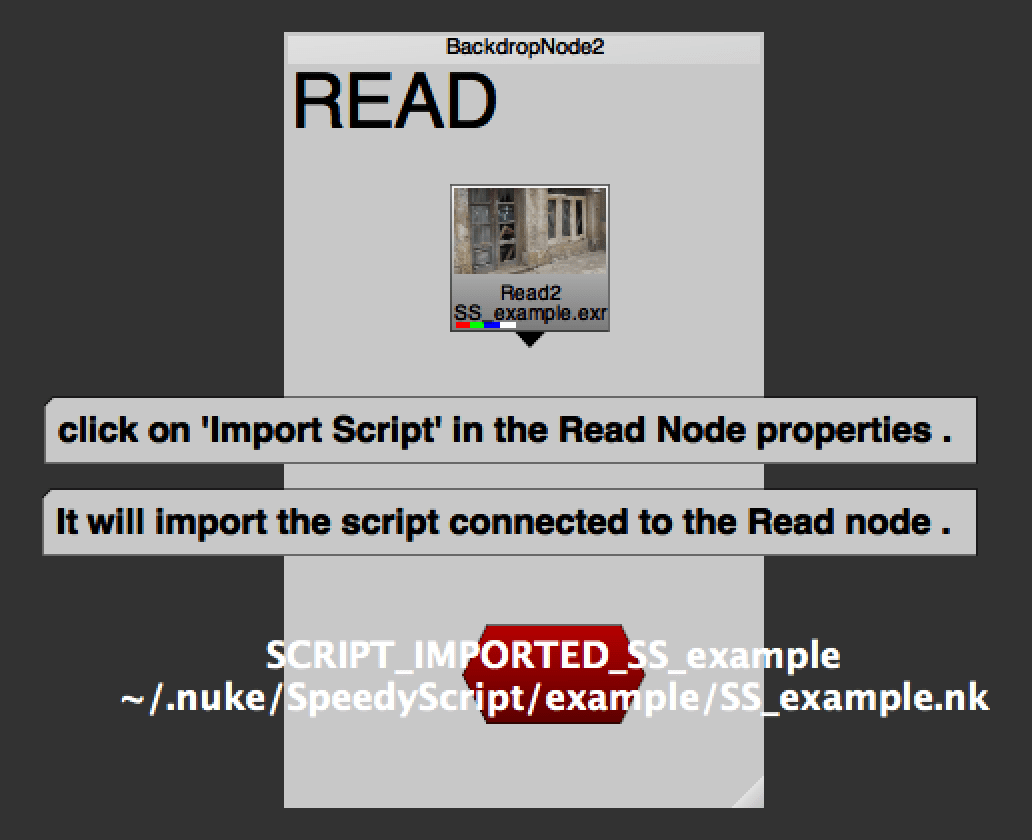
With this function, Speedy Script will import the script which generated the specific Read Node.
If you click on “Import Example” you will understand quickly what it does
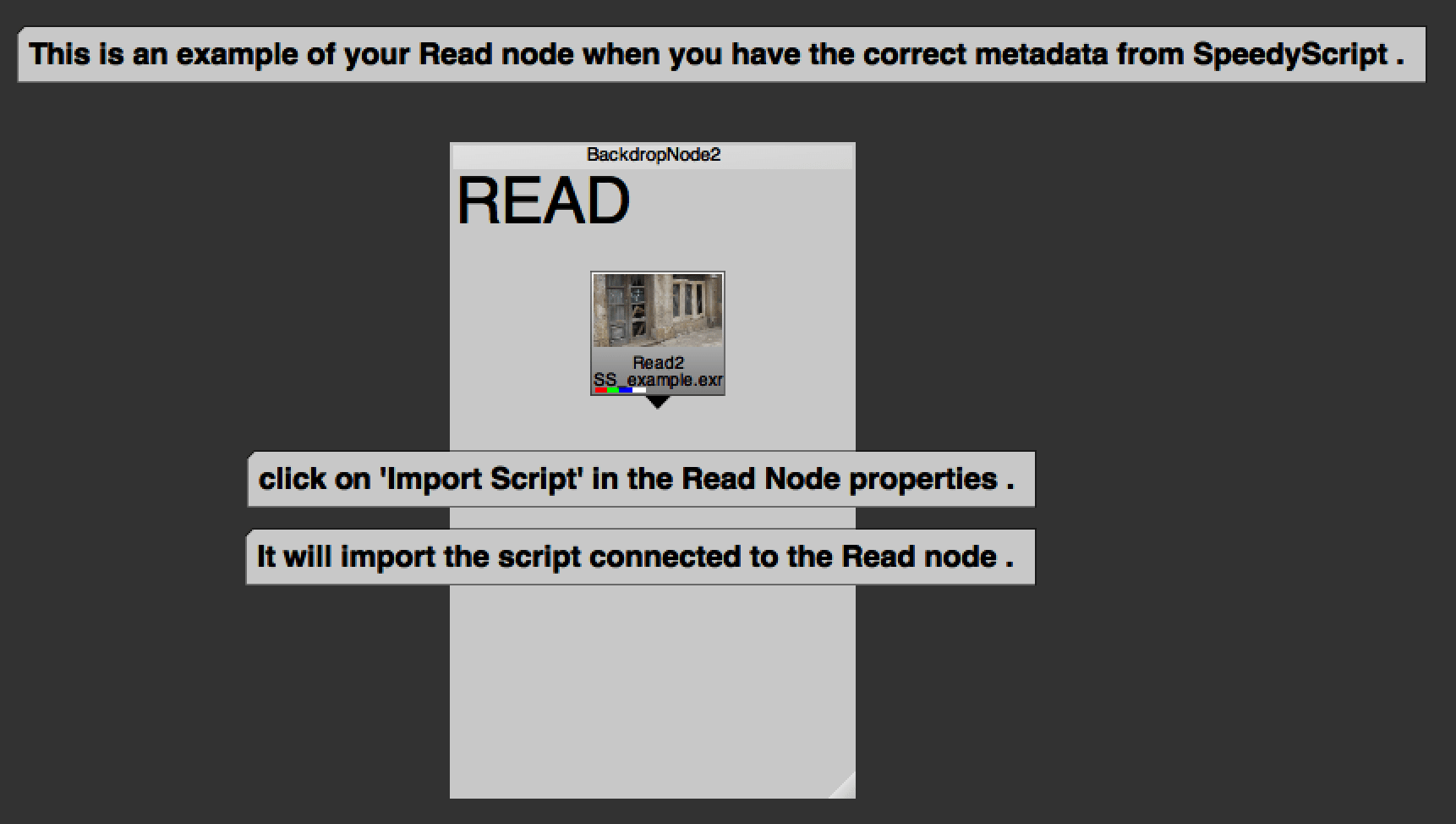
It will import a Read node: click on it and you will notice a new tab in the Properties, called “Import Script”
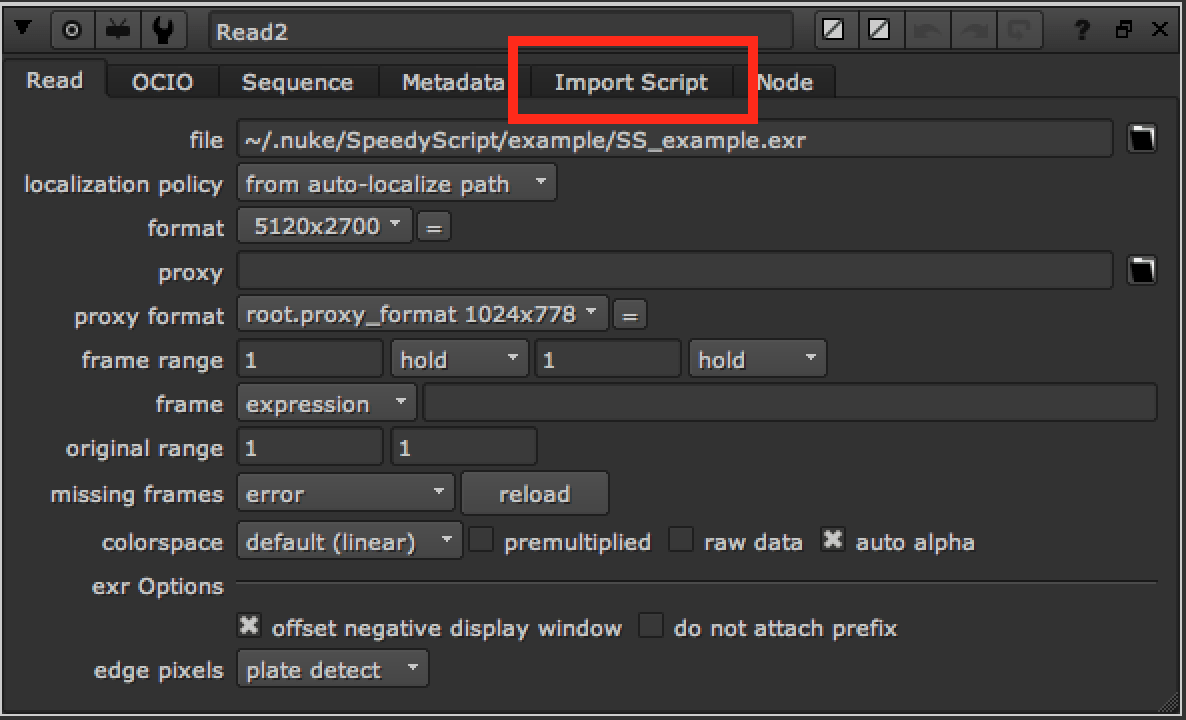
In that Tab, you will see two buttons that will allow you to Import/Open the Script which created that Read Node.
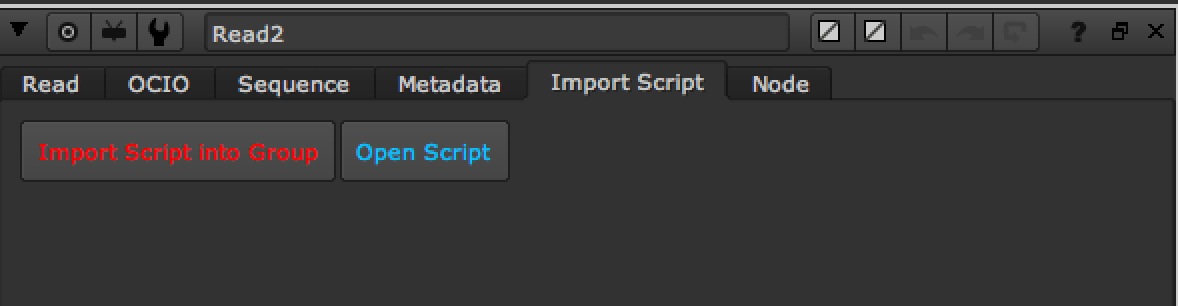
“Import Script into Group” will create the Group with the entire script inside.
How can you implement this useful feature in your pipeline?
The answer is metadata
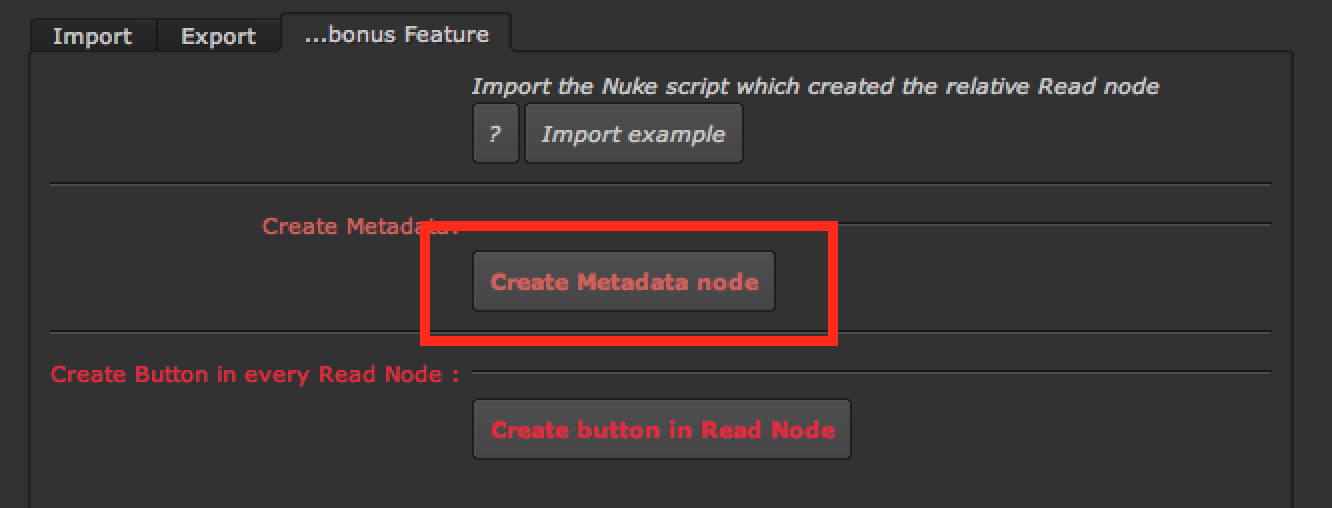
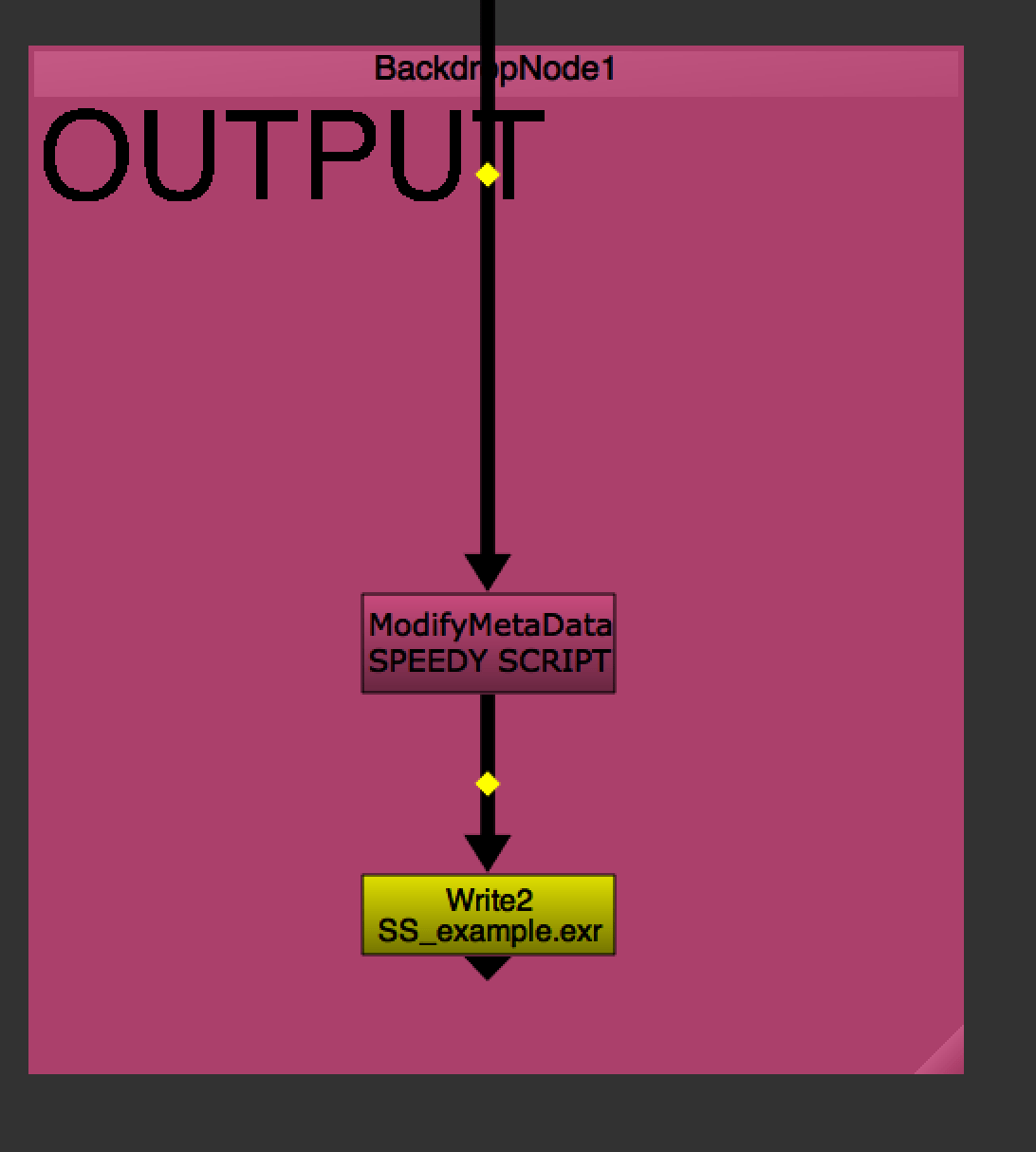
Click on the button Create Metadata node. It will create a simple node AddMetadata with all the options already inside. You don't need to touch anything.
Place this node before your final Write Node
- 04. Pipeline oriented
Speedy Script is pipeline oriented and it can be adapted to the needs of each company.
Of course, every developer can customize Speedy Script for their pipeline, and I'd just like to give you a small idea. As shown in the image below, when you open the Properties of a Read node, you could directly import some assets related to that footage.
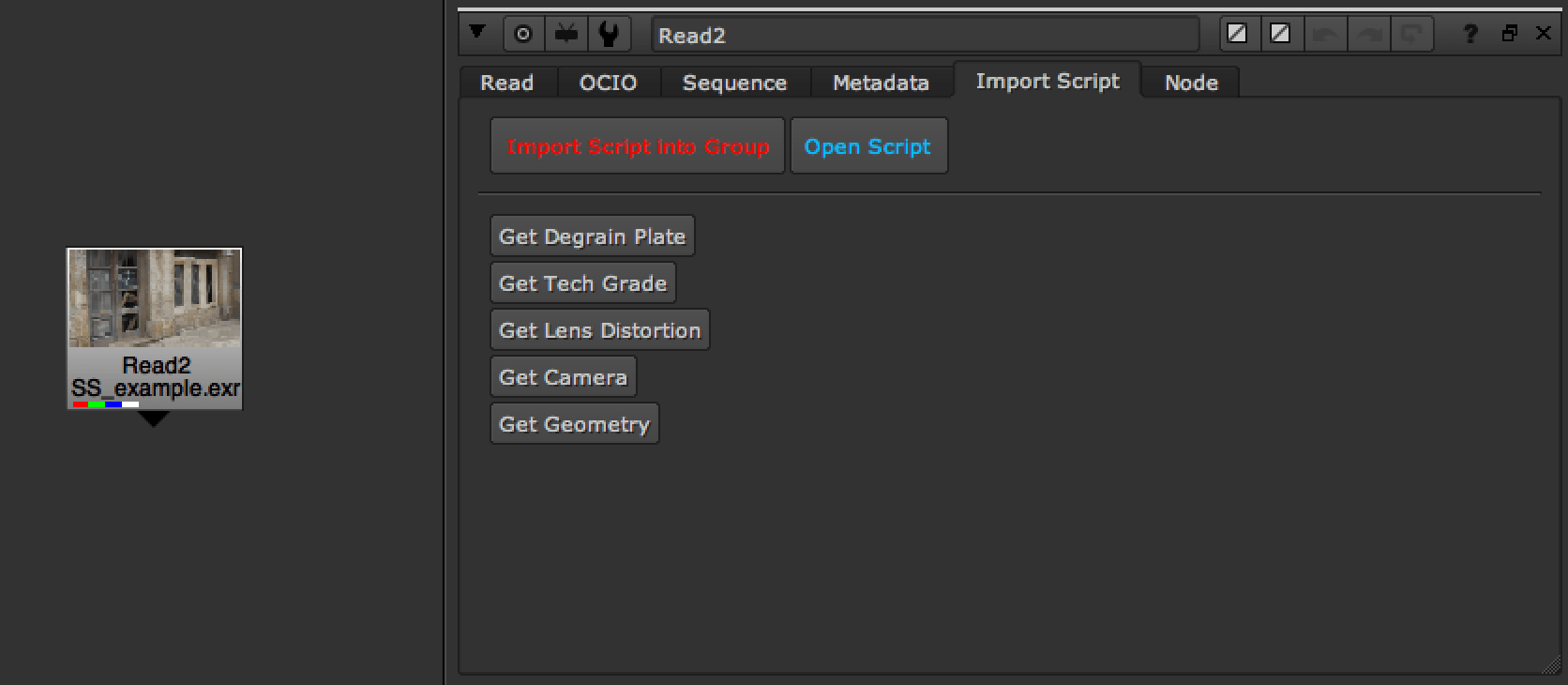
For example: Degrain plate, Camera and Lens Distortion, environment geometries, and so on...